Piso WiFi Pause Time: Complete Setup, Use & Key Details
Why let your paid internet minutes run out while you are offline? Piso WiFi Pause Time allows you to pause your session and save your remaining time for when you actually need it. This feature gives you more control over your internet session, allowing you to continue browsing later.
What is Piso WiFi Pause Time?
Recommended Piso WiFi Pause Time Settings for Philippine Operators
| Setting | Recommended Value | Why |
|---|---|---|
| Max Pause Duration (LPB) | 60 minutes | Suitable for short breaks without keeping sessions paused too long. |
| Pause Attempts per Session (AdoPiSoft) | 3–5 attempts | Gives users flexibility while limiting excessive pauses. |
| Auto-Expire Abandoned Sessions | 24 hours | Frees inactive sessions for new users. |
| Minimum Time Before Pause | 10 minutes | Prevents users from pausing very short sessions. |
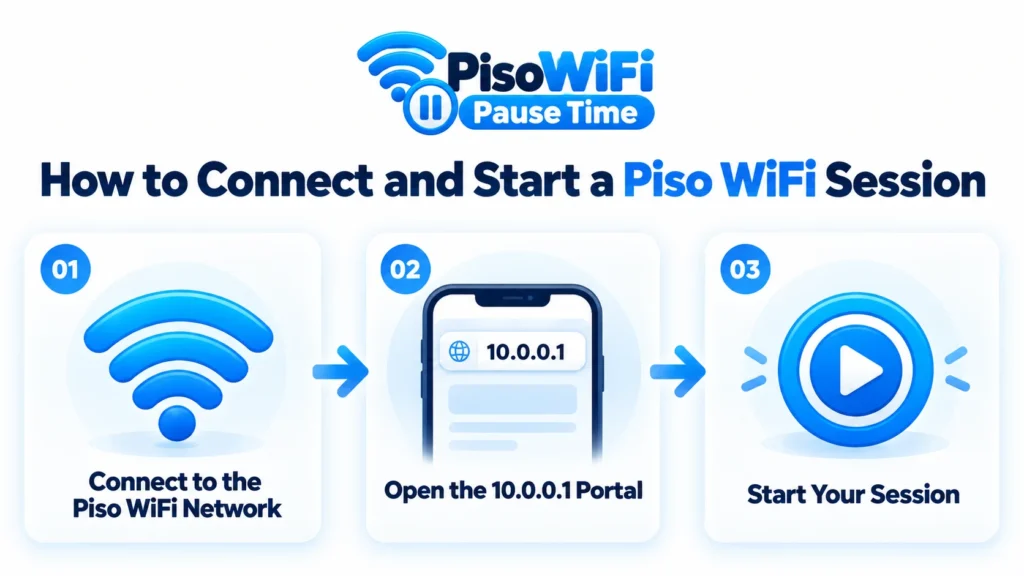
How to Connect and Start a Piso WiFi Session
Connect to the Piso WiFi Network
Open your phone or laptop’s Wi-Fi settings and connect to the available Piso WiFi network. The network name may appear as LPB Piso WiFi, AdoPisoWifi, Starlink Piso WiFi, or the name of the store. Most machines do not require a Wi-Fi password.
- For Android: Turn off mobile data before opening the portal. This helps your device connect to the local Piso WiFi network instead of using mobile data.
- For iPhone: iOS may automatically display the Piso WiFi login portal after connecting. If it does not, open Safari and enter the correct IP address.
Open the 10.0.0.1 Portal
Start Your Session
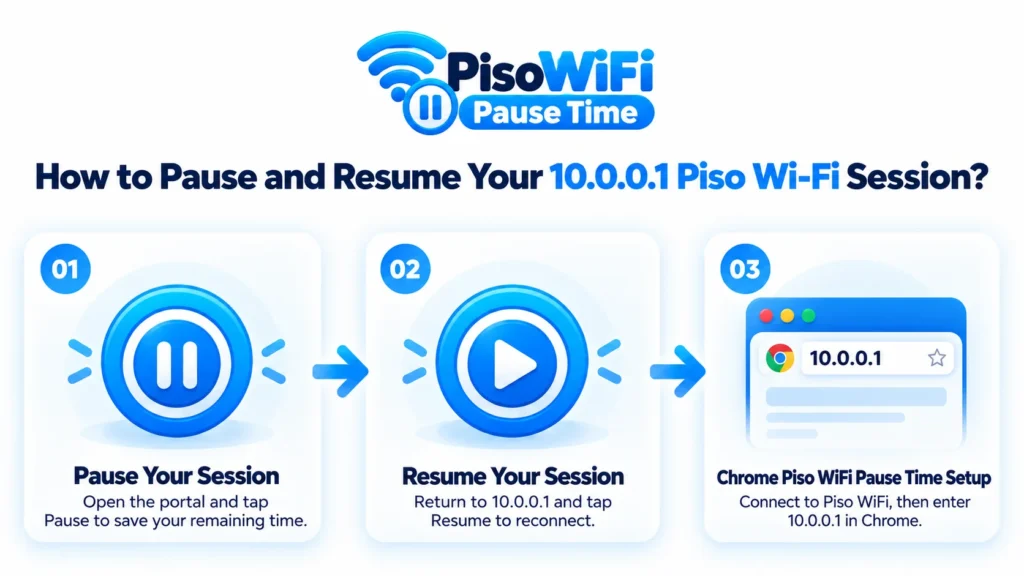
How to Pause and Resume Your 10.0.0.1 Piso Wi-Fi Session?
Pause Your Session
Once your session is active, select the Pause Time button. After you select Pause, the countdown stops and your remaining time is held until you resume the session. Its location may vary depending on the Piso WiFi platform:
- LPB: The LPB Piso WiFi Pause Time button usually appears below the session timer.
- AdoPiSoft: The Pause button appears below the circular timer.
- PisoFi: The pause option may be available in the Session Management area.
Resume Your Session
Chrome Piso WiFi Pause Time Setup
- Open Chrome and clear the address bar.
- Type 10.0.0.1 and press Enter.
- Wait for the portal and your session details to load.
- Select Pause Time when the option appears.
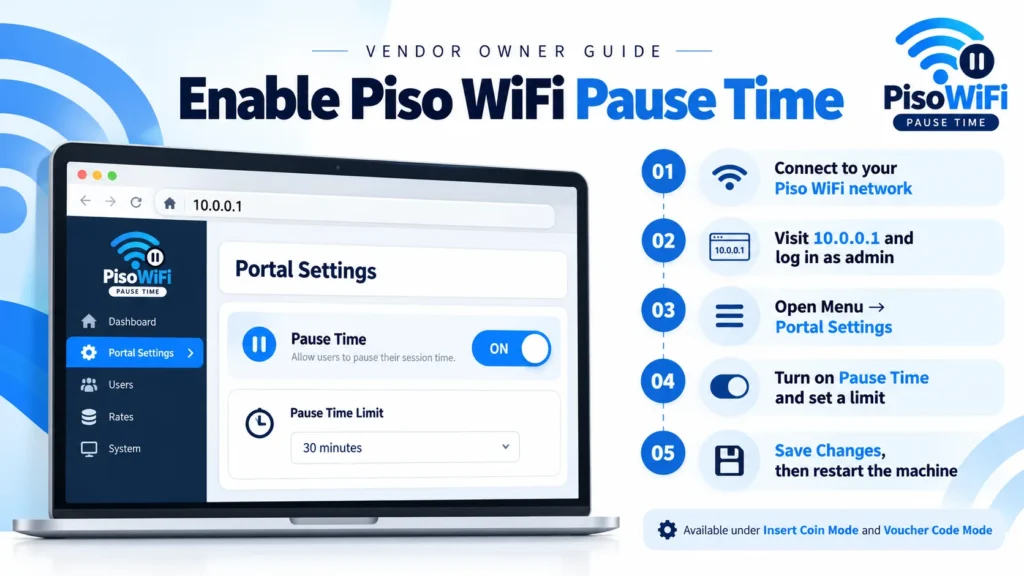
How to Enable Piso WiFi Pause Time as a Vendor Owner?
If the Piso WiFi Pause Time button is not visible to customers, you can enable it from the admin settings.
- Connect to your Piso WiFi machine’s network.
- Open a browser and enter 10.0.0.1
- Log in using your admin username and password.
- Open the three-line menu (≡).
- Go to Portal Settings.
- Find Pause Time under Insert Coin Mode and Voucher Code Mode.
- Turn Pause Time ON.
- Set the maximum pause duration if needed.
- LPB usually allows a pause from 10 minutes up to 24 hours, with 60 minutes as the default.
- Tap Save Changes.
- Restart the machine to apply the settings.
Why Enable Piso WiFi Pause Time?
- Customers can pause their sessions when they are not using the internet.
- Their remaining time is saved instead of being wasted.
- Paused sessions stop using the network, which can help free up bandwidth.
- Fewer wasted credits can also reduce customer complaints.
- Add a small sign near the machine to let customers know that Pause Time is available.
Two More Portal Settings Vendo Owners Miss
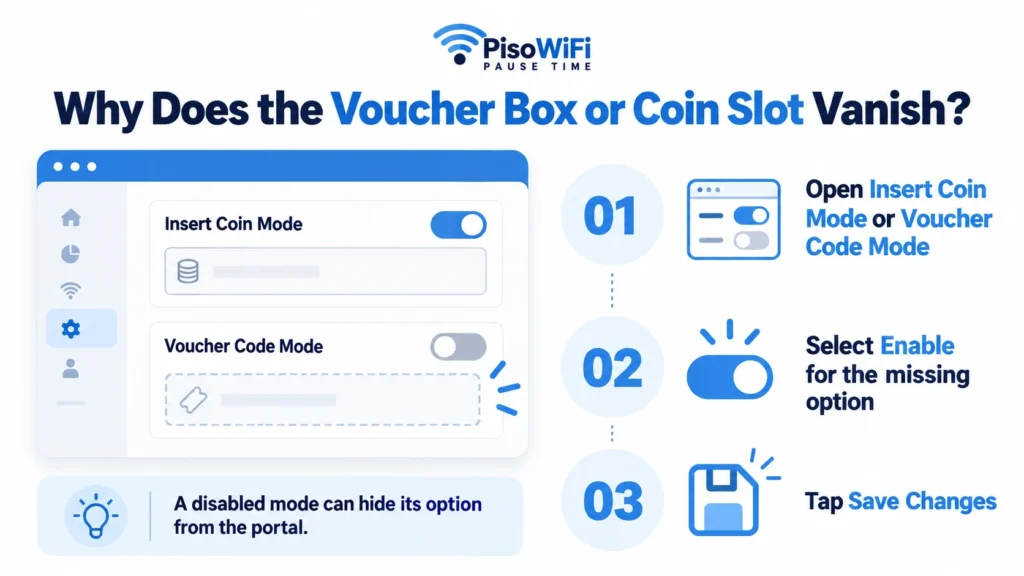
Why does the Voucher Box or Coin Slot Vanish From the Portal?
Insert Money and Voucher Code are options, just like Pause Time. If a customer cannot see the voucher field, the option may simply be disabled.
- Under Insert Coin Mode and Voucher Code Mode, find the option you want to change.
- Tap Enable or Disable.
- Tap Save Changes.
How to Set and Edit Timer Rates
- Tap the three-line menu (≡), then select Timer Rates.
- Tap + Add Rates to create a new rate.
- To edit an existing rate, tap … under Actions, then select Edit.
- Enter the peso amount and the amount of time it provides.
- Add an expiry date if the rate is a limited-time promotion.
- Tap Add or Edit to save the changes.
- You can offer three types of rates: a small option, a mid-range option, and a bulk option.
- A low ₱5 rate can be useful for customers who only have loose change.
- If Timer Rates is not visible, check under Rates, Pricing, or Settings, as menu names can vary between firmware versions.
Piso WiFi Pause Time: Security Tips for Safe Router Access
Change the Default Admin Password
Change the factory admin password as soon as you set up the machine. Default passwords may be publicly available. This allows others to access your settings and change your rates.
Avoid Using Customer Wi-Fi for Admin Access
Avoid opening the admin panel through the customer Wi-Fi. Use a separate admin device or a wired connection when possible. This helps reduce the risk of exposing your login details.
Do Not Enter Banking Passwords
Avoid entering banking passwords or other private information while connected to the Piso WiFi network. Use a trusted private connection for banking and other important accounts.
Keep Your Session Details Private
Do not share your MAC-locked session details or login screen with strangers. Your session is linked to your device, so sharing these details can expose information about your connection.
Keep the Router Firmware Updated
Check for firmware updates regularly and install them from the router manufacturer. Updates can resolve known security issues and help keep your Piso WiFi system protected.
Log Out After Making the Changes
Always log out of the admin panel after changing settings. Leaving an admin session open on a shared device can allow others to access and change the machine settings.
What Pause Time Does Not Do
- It does not give you extra minutes. It only saves the time you have already paid for.
- 10.0.0.1 Piso WiFi Time Pause does not keep your apps connected in the background. Your internet access stops when the session is paused.
- It does not turn off your mobile data. If mobile data is enabled, your apps may continue using it.
- Piso WiFi 10.0.0.1 Pause Time does not transfer your remaining time to another device. Your session is linked to your device’s MAC address.
- A regular user cannot enable Pause Time if the vendor owner has disabled it.
Does Disconnecting the WiFi Save My Remaining Time?
What should you do when the machine has no Pause Button?
| Option | How It Works | Best For |
|---|---|---|
| Buy a voucher code | On LPB Piso WiFi and AdoPiSoft, the timer starts when you enter the voucher code at 10.0.0.1 and tap Submit, not when you purchase the code. | Saving your internet time for later |
| Pay in smaller amounts | Each peso you insert starts the timer immediately, so adding smaller amounts can help you avoid paying for unused time. | Short browsing sessions |
| Ask the operator to pause it | The owner may be able to pause your session from the connected-users list at 10.0.0.1/admin, even when the Pause option is hidden from customers. | When your phone is dead or the portal is not loading |
Platform Comparison: LPB vs AdoPiSoft vs PisoFi
| Feature | LPB Piso WiFi | AdoPiSoft | PisoFi |
|---|---|---|---|
| Admin portal | 10.0.0.1/admin | 10.0.0.1/admin | App or web panel |
| Default username | admin | admin* | administrator* |
| Default password | 123456789* | admin* | admin12345* |
| Pause button | Below session timer | Below session timer | Session management |
| Pause limit | Admin-configured | Admin-configured | Admin-configured |
| Resume label | Resume Time | Continue / Resume | Resume |
| Pause duration | Admin-configured | Preset or admin-configured | Admin-configured |
| Reboot recovery | Varies by setup | Varies by setup | Varies by setup |
| GCash / Maya | Depends on setup | Depends on setup | Depends on setup |
1Click Piso WiFi and the 10.0.0.0.1 Typo Explained
- Type 10.0.0.1 directly into your browser.
- Do not use incorrect or spaced versions such as 10.0 0.0 1.
- Check one-click shortcuts before using them.
- Make sure the shortcut opens the correct local portal.
- Avoid links that redirect you to another website.
- Do not enter payment or personal details on unknown pages.
- When in doubt, type 10.0.0.1 manually.
IP Address Variants
| Address | Purpose / When to Use |
|---|---|
| http://10.0.0.1 | Standard portal address |
| http://10.0.0.0.1 | Admin panel |
| http://10.0.0.1/admin | Common typo; use 10.0.0.1 instead |
| http://10.10.0.1 | Alternate gateway on some LPB setups |
| http://10.10.10.1 | Older LPB configurations |
| http://10.5.50.1 | Some LPB vendo setups |
| http://192.168.1.1 | Common router address on some setups |
How to Find Your IP Address to Access the Portal?
- For Windows: Open Command Prompt and type ipconfig. Find Default Gateway. This is usually your portal address.
- For macOS: Open System Settings, select Network, choose Wi-Fi, and open Details. Check the Router address under TCP/IP.
- For Android: Open Settings, select Wi-Fi, tap your connected network, and look for Gateway in the network details.
- For iPhone (iOS): Open Settings, select Wi-Fi, tap the information icon next to your network, and check Router.
Troubleshooting Piso WiFi Pause Time
Pause Button Is Not Visible
If the pause button is not available, try these easy solutions:
- The admin may not have enabled Pause Time.
- If you are a customer, ask the shop owner to enable it.
- If you are the admin, go to Portal Settings.
- Turn on Pause Time under Insert Coin Mode and Voucher Code Mode.
- If Pause Time is already enabled, clear your browser cache.
- You can also open http://10.0.0.1 in an Incognito window.
Session Expired While Paused
If your session has expired while paused, check the following:
- Your pause may have reached the maximum time set by the owner.
- Some LPB setups use a 60-minute pause limit.
- After the limit ends, the timer starts running again.
- Check the pause limit before leaving your session.
- A paused session may also expire after a longer inactivity period, depending on the setup.
Portal at 10.0.0.1 Is Not Loading
When your portal is not loading, try these steps:
- Make sure you are connected to the Piso WiFi network.
- Disconnect and reconnect to the network.
- Turn off any active VPN.
- Type http://10.0.0.1 directly into your browser.
- On Android, check Private DNS and set it to Off or Automatic.
- Reload the portal after changing the settings.
WiFi Disconnects When the Screen Turns Off
To resolve this issue, try these simple tips:
- Your phone may disconnect from WiFi when the screen locks.
- Power-saving settings can sometimes turn off WiFi automatically.
- Reconnect to the Piso WiFi network.
- Open http://10.0.0.1 again.
- Your paused session may still be available after reconnecting.
- To prevent this, check your phone’s WiFi power-saving or Auto-Off settings before stepping away.
Can’t Log in from Mobile
- Turn off mobile data temporarily.
- Connect your phone directly to the router’s Wi-Fi network.
- Make sure you are entering the correct login address in your browser.
Cannot Resume on a Different Phone
Piso WiFi cannot be resumed on different device:
- A Piso WiFi session is usually linked to the device that started it.
- You may not be able to resume the session on another phone.
- Use the same phone or device to continue your session.
Pause Button Disappeared During the Session
The Pause button may disappear if you have reached the allowed pause limit or no longer meet the pause requirements.
- Some platforms allow admins to set a maximum number of pauses.
- On AdoPiSoft, the admin can set a pause limit for each session.
- If you reach the limit, the Pause button may no longer appear.
- Some LPB setups require a minimum amount of remaining time before you can pause.
Machine Lost Power or Rebooted While Paused
A power failure or machine reboot can affect your paused Piso WiFi session, depending on the system setup.
- Some systems can restore paused sessions after a restart.
- Other setups may clear the session.
- If your session is lost after a reboot, contact the machine owner.
Pros and Cons Of Piso WiFi
| Pros | Cons |
|---|---|
| Piso WiFi offers several benefits | Despite its benefits, Piso WiFi can have some limitations |
| No registration or ID is usually required | Sessions are linked to one device, so switching phones may not work |
| Widely available in sari-sari stores, terminals, and boarding houses | Public WiFi can have weaker security than a private home connection |
| Pause Time helps prevent unused minutes from being wasted | Pause limits vary by platform and may surprise users |
The Future of Piso WiFi
FAQs
Yes, it is a valid private IP address commonly used as a router’s default gateway.
It is used to access a router’s admin panel and manage network settings.
Many routers and networking devices use it as their default gateway for local network management.
On an iPhone, connect to the Piso WiFi network, open Safari, visit 10.0.0.1, and use the available Pause Time option.
The available minutes depend on the amount paid and the rates set up by the Piso WiFi operator.
It can be used safely, but avoid entering confidential information on a public Piso WiFi network and use secure HTTPS websites.
Reconnect to the network, disable mobile data or VPN, reopen 10.0.0.1, and check whether the session is active.
The vendo owner can change the WiFi/SSID name through the router or Piso WiFi admin settings.