Piso WiFi Login: Setup and Access Guide Philippines
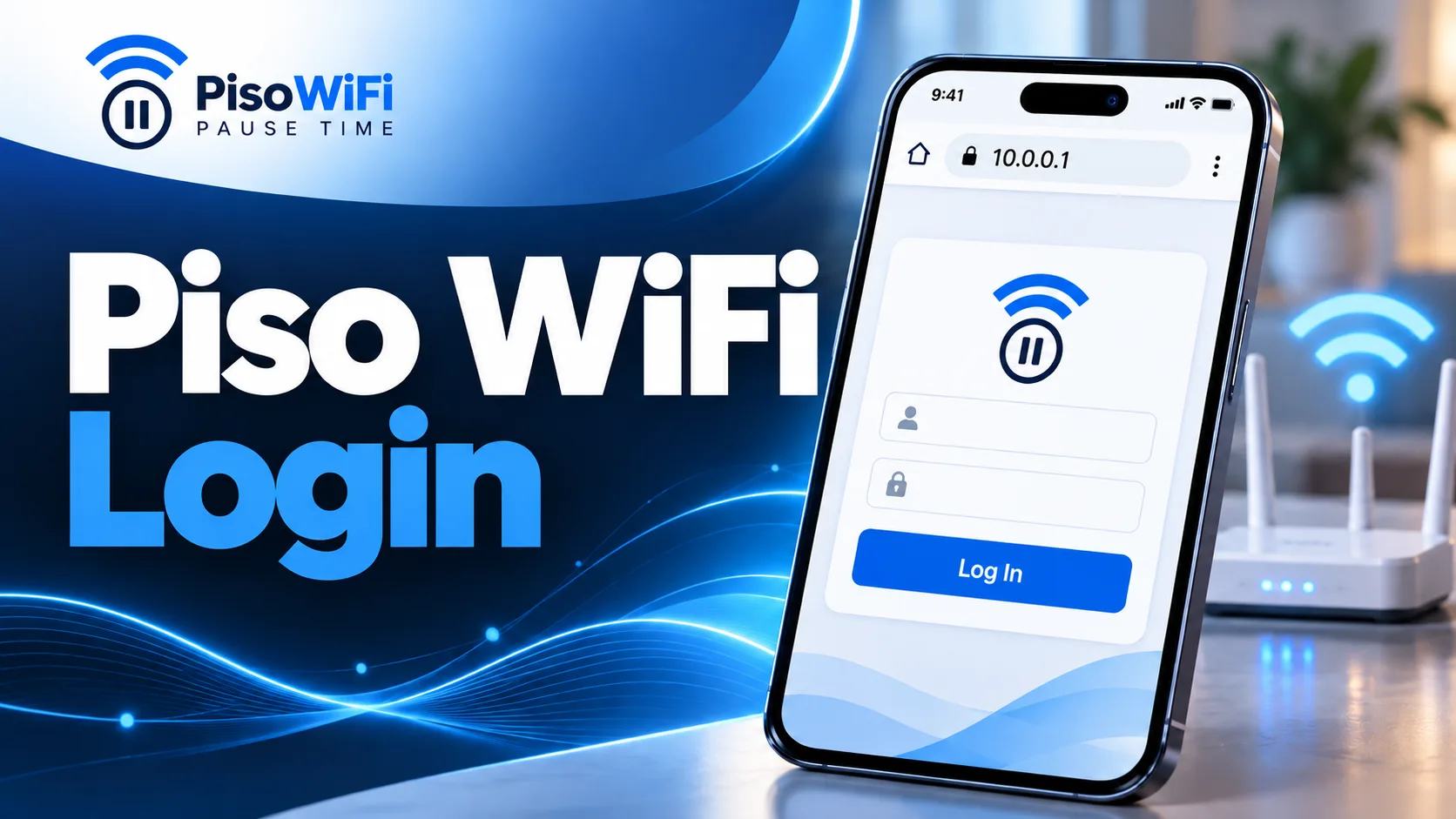
What is Piso WiFi Login?
Piso WiFi: Two Main Login Portals
- Admin portal: Operators can set rates, create vouchers, and manage machine settings for Piso WiFi admin login.
- Customer portal: Users can insert coins, redeem vouchers, and pause or resume their internet session.
Why Piso WiFi Login Matters
How to Log In to Piso WiFi?
- Connect your device to the Piso WiFi network by opening WiFi settings and selecting the network shown near the machine.
- Turn off mobile data so your phone stays connected to the Piso WiFi network.
- Open a browser such as Chrome, Firefox, Safari, or Edge.
- Enter 10.0.0.1 directly into the address bar, not the search box.
- Press Enter to open the Piso WiFi login portal.
- Insert coins or enter your voucher code and follow the payment instructions on the screen.
- If GCash or Maya is available, select the QR code or online payment option and complete the payment through the app.
- Wait for the payment to be confirmed and your internet session to activate.
- Start browsing once your session is active and the available time begins counting down.
Piso WiFi Admin Login
Steps to access the admin portal
- Connect your device to the Piso WiFi network you manage.
- Open a browser and type 10.0.0.1/admin into the address bar.
- Enter your admin username and password.
- Complete the CAPTCHA if it appears.
- Click Sign In or Login to open the admin dashboard.
Common default admin credentials by platform
| Platform | Default Username | Default Password |
|---|---|---|
| LPB Piso WiFi | admin | 123456789 |
| AdoPiSoft | administrator | admin1234 |
| Generic or Unbranded Units | admin | admin |
What the admin dashboard controls
- Set how many minutes users receive for each coin amount.
- Create and manage voucher codes for internet access.
- Set the maximum number of devices allowed during a paid session.
- Enable or disable the Pause Time feature for user sessions.
- Change the WiFi name (SSID) and password.
- Customize the login page with a logo, background, and color scheme.
- Check sales reports and monitor connected devices.
How to Reset Piso WiFi Admin Access
If you cannot access the Piso WiFi pause time admin panel, you may need to reset the router. Follow these steps:
- Find the small Reset button on the router, usually near the power port.
- Press and hold it for about 10 seconds until the lights blink or turn off.
- Wait for the router to restart completely, which may take one or two minutes.
- Log in again using the default credentials for your platform.
- Reconfigure your rates, vouchers, WiFi name, password, and other settings because a factory reset removes your custom configuration.
Piso WiFi 10.0.0.1 Pause Time Login
- Connect your phone, laptop, or tablet to the Piso WiFi network.
- Open a browser and enter 10.0.0.1 directly in the address bar.
- Start your session by inserting coins or entering a voucher code.
- Once the session is active, find the Pause Time button on the portal.
- Tap Pause Time to stop the countdown and keep your remaining minutes.
- When you want to continue browsing, open the portal again and select Resume Time.
Piso WiFi 10.0.0.1 Pause Time Login
Check Pause Time Availability
Pause Time may not be available on every Piso WiFi setup. The operator can enable or disable the Pause Time Piso WiFi feature based on the system configuration.
Manage Pause Time as an Admin
Operators can access the admin panel through 10.0.0.1/admin to check and manage available Pause Time settings. Options can vary depending on the Piso WiFi platform and its configuration.
Pause Limits and Session Rules
Pause limits can differ between platforms. Some systems limit how long a session can stay paused. Other systems may limit how many times a user can pause a session.
Avoid Network Changes During a Paused Session
Avoid restarting the router or changing networks while your session is paused. On some setups, these changes may affect the saved session or make it difficult to resume.
Use the Same Device to Resume
Try to resume your session on the same device you used to pause it. Some Piso WiFi systems link an active session to the device connection, so switching devices may affect access.
How to Log Out of Piso WiFi
Common Piso WiFi Login Typos
Invalid Extra-Zero Variants Errors
- 10.0.0.0.1 piso wifi portal login
- 10.0.0.0.1 piso wifi login
- 10.0.0.0.1 piso wifi admin
- 10.0.0.0.1/admin piso wifi
- 10.0.0.0.1 piso wifi pause time 10.0.0.1 login
- 10.0 0.0 1 piso wifi portal login
- 10.0 0.0 1 piso wifi portal login pause
Why Is This Typo So Common?
The address 10.0.0.0.1 contains five number groups instead of the four required in a standard IPv4 address. It can happen when users type quickly, rely on autocorrect, or confuse the address with other number-based formats.
Because the format is incorrect, the browser cannot use it as the intended Piso WiFi gateway address. Always enter 10.0.0.1 without an extra zero, space, or other character.
Other Piso WiFi Login Variants
These searches generally refer to the same login Piso WiFi destination. For the customer portal, use 10.0.0.1. For the admin page, use 10.0.0.1/admin. Enter the address exactly as shown to avoid typing errors.
- sign in piso wifi
- log in piso wifi
- piso wifi log in
- piso wifi login pause
- 10.0.01/admin piso wifi
- 10.0.0.1 piso wifi pause time 10.0.0.1 login
Troubleshooting Piso WiFi Sign-In Problems
| Problem | Likely Cause | Quick Fix |
|---|---|---|
| Page won’t load | Wrong network or IP typo | Reconnect to the Piso WiFi network and enter 10.0.0.1 correctly. |
| Admin login rejected | Password was changed | Contact the operator or reset the system if authorized. |
| Voucher won’t redeem | Voucher expired or used | Get a new voucher code. |
| Not secure warning | Browser switched to HTTPS | Enter https://10.0.0.1 manually. |
| Page freezes | VPN is active | Disable the VPN and reload the portal. |
| Pause button missing | Feature is disabled | Ask the operator if Pause Time is enabled. |
| Connected but no internet | Session is inactive or expired | Open 10.0.0.1 and check your session status. |
| Portal still won’t load | Router needs a refresh | Restart the router and wait about 2 minutes. |
| Cannot connect | Device limit reached | Disconnect another device or ask the operator for help. |
Tips for a Smooth Piso WiFi Login
Type the Address Directly
Type 10.0.0.1 into your browser’s address bar instead of searching for it on Google or another search engine.
Bookmark the Portal
Disable Your VPN
Turn off any active VPN before logging in. A VPN can interfere with access to local network addresses such as 10.0.0.1.