LPB Piso WiFi 10.0.0.1: Features, Login, Pause Time & Access
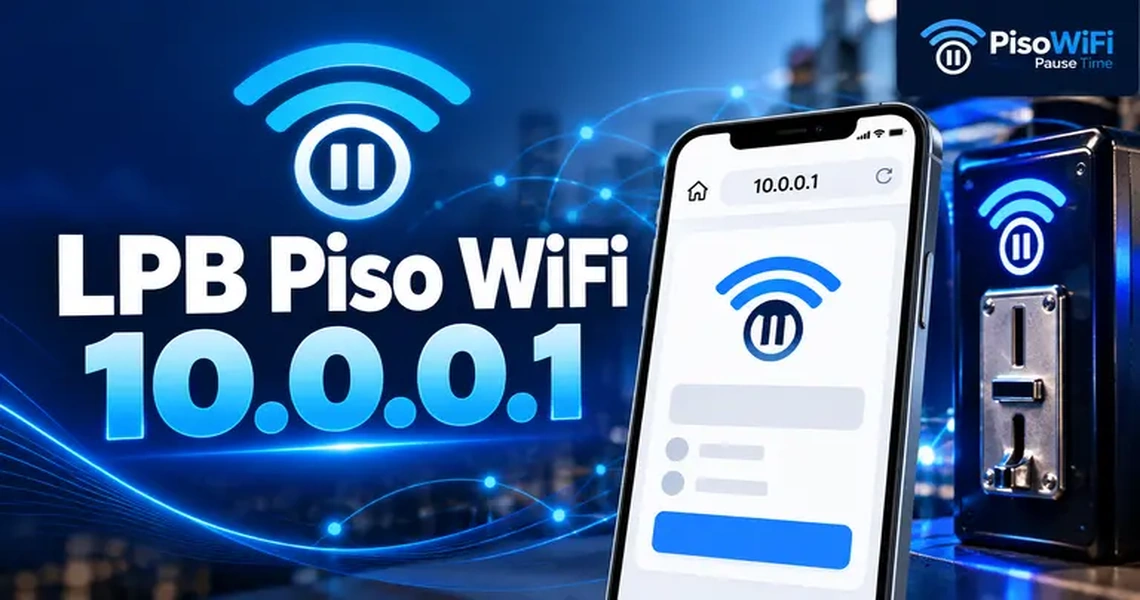
What Is LPB Piso WiFi?
Where LPB Piso WiFi 10.0.0.1 Machines Commonly Appear
- Sari-sari stores
- Jeepney terminals and waiting sheds
- Condo lobbies and boarding houses
- Barangay halls and public waiting areas
Advanced Features of LPB Piso WiFi
From smarter session control to cashless payments, LPB Piso WiFi 10.0.0.1 has useful features that make your WiFi easier to manage.
LPB Cloud Session Time
Customer session time is synced through LPB Cloud across supported machines in Luzon, Visayas, and Mindanao. Users can keep their remaining time synced and pause or resume their sessions when connecting through supported LPB Piso WiFi devices.
Coin-Operated WiFi
The built-in coin slot integration allows customers to purchase WiFi access automatically. They simply insert coins into the machine, and the system provides internet access without requiring manual assistance from the operator.
LPB Remote Monitoring
LPB provides a built-in remote monitoring system that allows owners to manage their machines without third-party tools. Operators can access supported machines through the LPB platform without needing additional monitoring software or complex setup.
Machine Transfer
Machine Transfer allows operators to move devices between distributor accounts more easily. A secure two-step email verification process helps protect account transfers. The verification also makes it simple to manage multiple machines under different accounts.
Bandwidth and Traffic Control
10.0.0.1 LPB Piso WiFi includes smart queue management, port priority, and per-user speed limits for better traffic control. Operators can set time limits, data caps, and traffic priorities to help maintain stable and balanced internet access.
Sales and Earnings Tracking
Operators can track wallet balances, credit transfers, license usage, and transaction records from one place. Search, date filtering, and export options make it easier to review sales activity and monitor overall business performance.
Eload and Cash-in
Piso WiFi LPB allows operators to use their Piso device as an eloading and cash-in station. Customers can purchase mobile load for supported networks directly through the machine, providing an additional service and potential revenue source.
Multi Subvendo with Auto Select
Operators can create multiple sub-vendors under one machine with automatic VLAN selection. The system can direct customers to the appropriate sub-vendo based on configured network settings, making it useful for larger WiFi setups.
Fully Customizable Theme
Operators can customize the Piso WiFi portal to match their preferred brand style. Colors, logos, and layouts can be adjusted without coding, helping create a recognizable interface that gives customers a more personalized login experience.
Buy Time or Buy Data
Customers can choose between time-based and data-based WiFi packages according to their usage needs. They can purchase access for a specific duration or select a data allowance for more flexible internet sessions.
PPPoE Server
The built-in PPPoE server supports monthly subscription customers by allowing operators to create accounts and connect routers. Billing tools, e-payment options, and SMS reminders can also help manage recurring internet subscriptions.
Voucher System
Operators can create and manage prepaid WiFi vouchers for their customers. Each voucher can include custom time or data limits, making the system suitable for shops, resellers, and businesses offering prepaid internet access.
E-Payments (GCash and Maya)
Customers can pay for WiFi access through GCash and Maya without inserting physical coins. These cashless payment options make purchases more convenient while allowing operators to accept digital payments directly through the system.
LPB Piso Net
LPB Piso Net supports coin-operated computer rental services through its dedicated application. Features such as session timers, usage management, and tracking help operators manage computer rentals within the same LPB ecosystem.
Phone Rental Services
Operators can offer temporary phone rental services through a coin-operated setup. This option can help customers who need short-term phone access while providing operators with another service to offer through their existing vending machine.
LPB Piso WiFi Login: Getting the Right IP Address
| Address | Purpose |
|---|---|
| http://10.0.0.1 | Customer portal for payments, remaining time, and pause or resume options |
| http://10.0.0.1/admin | Admin panel for managing rates, vouchers, sales, and other settings |
Steps to log in as a customer
Follow these simple steps to access the LPB Piso WiFi 10.0.0.1 customer portal and start your internet session.
- Connect your phone, tablet, or laptop to the LPB Piso WiFi network.
- Open a web browser and type 10.0.0.1 directly into the address bar.
- Select Insert Money to purchase WiFi time.
- Insert coins or enter your voucher code, depending on the available payment option.
- Select Done Paying to start your internet session.
Tip: If you are changing the machine settings, a LAN connection can provide a more stable connection than WiFi and may help prevent interruptions during setup.
LPB Piso WiFi 10.0.0.1 Pause Time
How LPB Piso WiFi 10.0.0.1 Pause Time Works
- Connect to the LPB Piso WiFi network and open 10.0.0.1.
- Select the Pause Time button when your session is active.
- Your remaining session time stops counting down.
- Select Resume Time when you are ready to continue browsing.
How to Check LPB Piso WiFi 10.0.0.1 Pause Time
Checking your remaining pause time can help you confirm whether your paid session is still active. Pause limits can vary depending on the machine owner’s configuration. Some setups may limit how long a session can remain paused or automatically expire an inactive session after a certain period. Once connected to the correct network, you can check the status directly through the customer portal.
- Connect your device to the LPB Piso WiFi network.
- Open a browser and enter 10.0.0.1.
- Check the portal for your remaining session time.
- If the session is paused, the remaining balance should stay visible until you select Resume Time.
LPB Piso WiFi 10.0.0.1 Pause Time Issues and Solutions
| Problem | Likely Cause | Quick Fix |
|---|---|---|
| Pause button does not respond | Portal is stuck | Reload 10.0.0.1 or use incognito mode |
| Session will not resume | Pause time expired | Start a new session and resume sooner |
| Paused session was not saved | Outdated firmware | Ask the owner to update the firmware |
| Remaining time disappeared | Device was changed | Resume on the same device used to pay |
| Portal keeps freezing | Weak signal or heavy traffic | Move closer and try again |
Public WiFi Safety Tips
Follow these simple safety tips to protect your personal information when using public WiFi.
- Avoid entering sensitive information, such as banking details, when using shared public WiFi.
- Use suitable security measures when accessing personal or financial accounts.
- Pause Time availability depends on the machine’s settings.
- Some operators may disable the Pause Time feature.
- Pause Time may be available only for certain payment methods, such as coins or vouchers.
- If the Pause Time button is not visible, the machine owner may have disabled the feature.
LPB Piso WiFi 10.0.0.1 Admin Access
Steps to access the admin panel
Use the following steps to access the LPB Piso WiFi 10.0.0.1 admin dashboard and manage your machine’s settings, rates, vouchers, and network options.
- Connect to the LPB Piso WiFi network.
- Open a browser and enter 10.0.0.1/admin in the address bar.
- Enter your admin username and password.
- Complete the CAPTCHA if required, then click Sign In.
What the admin dashboard controls
- Portal Settings: Enable or disable Pause Time.
- Timer Rates: Set the time provided for each coin value.
- Sales Reports: View sales and total machine earnings.
- Network Settings: Manage the WiFi name, password, and other options.
- Voucher Generator: Create prepaid voucher codes.
How to Generate a Voucher Code
Creating an LPB Piso WiFi voucher is simple when you have access to the admin dashboard. Follow these steps to generate a code with the required price, time, and validity.
- Open the Voucher Generator from the admin dashboard.
- Enter the Price for the voucher.
- Set the Minutes of internet access.
- Choose the Voucher Validity period.
- Click Generate to create the voucher.
- Find the new code in the voucher list and give or sell it to customers.
How to Turn Pause Time On or Off?
Pause Time must be enabled in the admin panel before customers can use it.
- Log in at 10.0.0.1/admin using your admin credentials.
- Open Portal Settings from the dashboard.
- Find Pause/Resume Time, usually under Insert Coin Mode.
- Turn the feature on or off as needed.
- Choose Insert Coin Mode, Voucher Code Mode, or both.
- Save the changes and check the customer portal to confirm the Pause Time button appears.
Advanced Admin Settings and Security Tips
Common LPB Piso WiFi Typos and Misspellings
Typing errors in LPB Piso WiFi searches can prevent users from reaching the correct login page. The correct brand name is LPB, and the standard IP address is 10.0.0.1.
Extra digit and formatting errors
Small typing mistakes in the IP address can stop the LPB Piso WiFi login page from opening correctly.
- 10.0.0.0.1 LPB Piso WiFi
- 10.10 0.1 LPB Piso WiFi pause time
- 1.0 0.0 1 10.0 0.1 pause time LPB Piso WiFi
- 10 LPB Piso WiFi
Brand name misspellings
Typing the wrong letters in the LPB brand name can also lead to incorrect search results and confusion when accessing the Piso WiFi portal. These variations are incorrect. Always use LPB and 10.0.0.1 when accessing the portal.
- LBS Piso WiFi
- LBP Piso WiFi
- LB Piso WiFi
- LBS Piso WiFi 10.0 0.0
- LBS Piso WiFi 10.0 0.1
Troubleshooting LPB Piso WiFi 10.0.0.1 Login Problems
| Problem | Likely Cause | Fix |
|---|---|---|
| Page will not load | Wrong network or IP address | Connect to the LPB Piso WiFi network and enter 10.0.0.1 |
| Admin login rejected | Password was changed | Contact the supplier or reset the machine |
| Pause button missing | Feature is disabled | Ask the operator to enable Pause Time |
| Portal freezes | Weak signal or heavy traffic | Move closer and try again |
| Page shows an error | VPN is active | Disable the VPN and reload |
Most Commonly Used Hardware Options
LPB Piso WiFi 10.0.0.1 supports several hardware options, from affordable boards to powerful routers and PCs. This allows operators to choose a setup based on their budget and performance needs.
Raspberry Pi 3/4
Raspberry Pi 3 and 4 boards provide reliable performance for LPB Piso WiFi systems. They offer solid processing capabilities and are generally more capable than comparable Orange Pi boards for this type of setup.
Orange Pi One/PC
Orange Pi One and PC models can also run LPB Piso WiFi at a lower cost. They provide suitable performance for basic setups while offering an affordable alternative to Raspberry Pi hardware.
Orange Pi Zero 3
Orange Pi Zero 3 is a compact single-board computer designed for space-saving setups. Its affordable price and capable performance make it a practical option for LPB Piso WiFi installations.
Newifi 3 D-2
Newifi 3 D-2 combines a board and access point in one device, reducing the need for separate hardware. It offers a budget-friendly option for users looking for a simple LPB Piso WiFi setup.
PC Version
The PC version allows LPB Piso WiFi to run on a standard desktop or mini PC. It can be a convenient choice for operators who already have a spare computer available for the system.
MXQ Android Box
An MXQ Android Box can be configured for use with LPB Piso WiFi. Its low cost makes it an accessible option for beginners who want to build a basic Piso WiFi machine.
Ruijie EW1200G PRO
The Ruijie EW1200G PRO is a dual-band router designed to provide broad and reliable wireless coverage. It can suit Piso WiFi setups that require stable connectivity for multiple users.
Orange Pi 5
Orange Pi 5 uses the RK3588S processor and offers higher processing performance than many entry-level boards. It can be suitable for LPB Piso WiFi installations that require additional computing power.
Newifi D2
Newifi D2 is an affordable OpenWrt-compatible router with built-in wireless connectivity. Its all-in-one design makes it a practical choice for budget-conscious Piso WiFi installations.
Newifi D2 Direct ROM Flash
The Newifi D2 Direct ROM Flash method allows LPB software to be installed without using intermediate firmware. This provides a more direct installation process for compatible Newifi D2 devices.
Raspberry Pi 5
Raspberry Pi 5 offers improved CPU and GPU performance compared with earlier Raspberry Pi models. Its stronger hardware makes it suitable for LPB Piso WiFi setups that need higher processing capacity.
Linksys EA8300
The Linksys EA8300 is a tri-band router with MU-MIMO technology for handling multiple connected devices. Its wireless capabilities make it an option for Piso WiFi setups requiring wider coverage and reliable connections.
How to Factory Reset an LPB Piso 10.0.0.1 WiFi Machine
Find the recessed reset button on the router and hold it with a pin or paperclip for around 10 to 30 seconds. Release it when the LED changes, then wait for the machine to restart. Access 10.0.0.1 again using the default credentials if applicable. A factory reset removes custom settings such as rates, WiFi details, and vouchers, so use it only as a last resort.
Tips for LPB Piso WiFi 10.0.0.1 Users and Owners
Follow these simple tips to keep your LPB Piso WiFi 10.0.0.1 machine secure, stable, and easy to manage.
- Bookmark 10.0.0.1 after your first successful login to avoid typing errors.
- Check Pause Time availability before troubleshooting, as the operator may have disabled it.
- Change the default admin password to help protect the dashboard.
- Use Ethernet during setup for a more stable connection.
- Review sales regularly through the admin dashboard to monitor machine activity.
- Use stable power to reduce connection problems and unexpected session interruptions.
FAQs
LPB Piso WiFi is a coin-operated internet system that provides users with WiFi access for a specific duration.
The commonly used IP address for accessing the LPB Piso WiFi portal is 10.0.0.1.
Set up the LPB Piso WiFi device and complete the required registration or activation process through the LPB system.
Log in to the LPB admin system, enter your valid license details, and follow the activation instructions.
Log in to the admin panel, open the security settings, and change the existing password to a new one.
Purchase or generate a voucher through the LPB Piso WiFi system, then enter its code on the login portal.
Open the Piso WiFi portal during an active session and tap the Pause option to stop the timer temporarily.
Tap Pause while your session is active to stop the countdown until you resume the connection.
Access the admin panel and use the available Reset option to restart the LPB Piso WiFi.
Conclusion
LPB Piso WiFi 10.0.0.1 makes it easy to manage WiFi access, pause sessions, create vouchers, control network settings, and monitor machine activity. Using the correct IP address and admin settings can help users avoid common login and pause time issues. Follow the right steps, keep your settings secure, and start managing your Piso WiFi system with confidence today.
Pingback: Piso WiFi Login: Complete Setup and Access Guide 2026
Pingback: Cebu Pacific Piso Fare 2026 Guide to Booking Cheap Flights